Why a “better” monitor can feel like a new computer
Faster hardware is great, but your eyes and brain interact with the screen all day. When text looks sharp, scrolling feels smooth, and the screen fits your workflow, everything feels easier — less fatigue, better posture, faster tasks.
1) Start with desk space and viewing distance
Before you compare any specs, do one simple thing: measure the width of your desk and how far your eyes are from the screen. That determines the size you’ll actually enjoy.
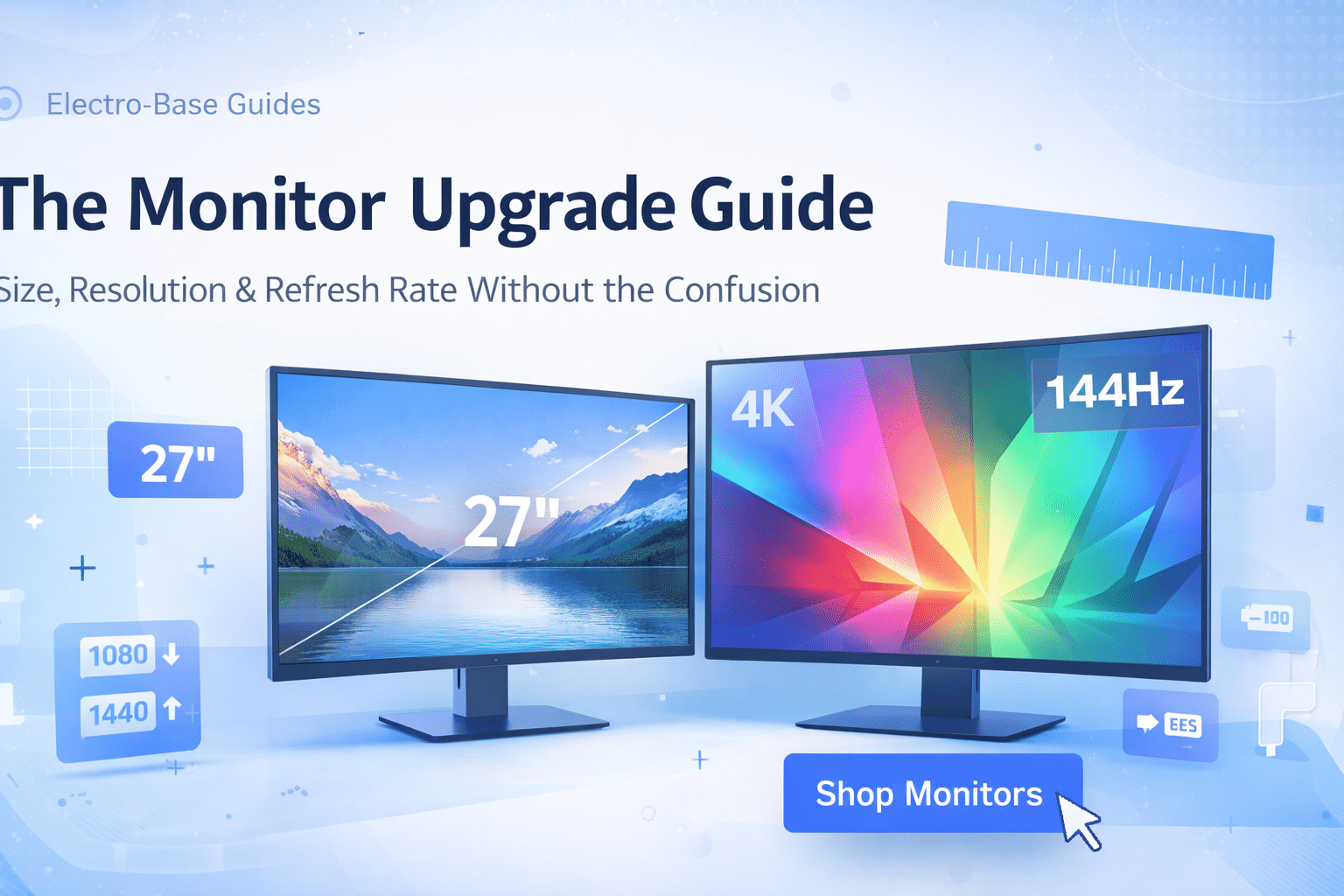
- 24" → compact desks, school/work basics, comfortable for close viewing
- 27" → sweet spot for most people, great for productivity and gaming
- 32"+ → best with deeper desks; amazing for multitasking, but can overwhelm small spaces
2) Resolution: the easiest way to avoid regret
Resolution affects sharpness (text clarity) and how much content fits on screen. But it also affects scaling. If you pick a very high resolution on a small monitor, you may end up increasing scaling and losing the extra “space”.
Here’s the practical interpretation:
- 24" + 1080p is a classic budget-friendly combo for office tasks and casual use.
- 27" + 1440p is the “feels premium” upgrade — crisp text, more workspace, and great for gaming.
- 32" + 4K can be stunning for media and productivity (especially on deeper desks).
3) Refresh rate: when it matters (and when it doesn’t)
Refresh rate is how many times the image updates per second. Higher refresh rates can feel smoother for gaming and fast motion, but they are not mandatory for everyone.
- 60–75Hz → perfectly fine for office work, web browsing, and general use.
- 100–144Hz → noticeable smoothness, great for gaming and “premium” scrolling feel.
- 165Hz+ → for competitive gaming (only worth it if your PC can deliver high FPS).
4) Panel types: what you’ll actually notice
Panel type impacts colors, viewing angles, and contrast. The good news: modern monitors across many categories are very solid. The best choice depends on your priorities.
- IPS → excellent viewing angles and color; great all-rounder for work and creative tasks.
- VA → strong contrast (nice for movies), can vary in motion performance.
- TN → fast response, but weaker colors (less common now for everyday buyers).
5) Ports and compatibility checklist
A “perfect” monitor is still annoying if it doesn’t connect the way you need. Before buying, check:
- Do you need HDMI for consoles / TV boxes?
- Do you need DisplayPort for higher refresh rates on PC?
- Do you want USB ports (mouse/keyboard/dongles) or USB-C (for modern laptops)?
- Will you use speakers/headphones through the monitor (audio out)?
6) Simple picks by use case
Use this as a quick “shortcut” if you want to decide fast.
7) Buying with confidence
Before checkout, it’s worth bookmarking the key pages that answer 99% of questions:
- Shipping Policy — delivery terms and timeframes.
- Return & Refund Policy — how returns work.
- Warranty Policy — coverage for manufacturing defects.
- Payment Policy — payment methods and security notes.
Mini FAQ
Should I choose 4K or 1440p for a 27" monitor?
For most people, 1440p at 27" is the best balance of clarity, performance, and comfort. 4K can look incredible, but it may require scaling and more GPU power for gaming.
Does a higher refresh rate help for office work?
It can feel smoother when scrolling and moving windows — but it’s not mandatory. If you want “luxury smoothness”, consider 100–144Hz.
What if I’m not sure about compatibility?
Send us a message via Contact Us and include your device model and how you plan to connect. We’ll help you avoid mismatches.
Wrap-up
The best monitor is the one that matches your routine: the right size for your desk, sharp enough for comfort, and smooth enough for what you enjoy. If you’d like a quick recommendation, contact us — we’ll keep it simple and practical.